Integrations
Help Scout integration: add OneRosta to your sidebar
Show live channel coverage and each agent’s own shifts right beside Help Scout conversations.
OneRosta’s Help Scout integration puts your schedule where your team already works. Team leads see who is covering chat, phone and email right now; agents see their own next shift in their own timezone—without leaving the conversation.
Setup takes a few minutes and is done once by a Help Scout admin. Everyone else simply signs in to OneRosta the first time they open the sidebar.
Before you start
- This guide is for owners & managers. Other roles may see a reduced version of these screens.
- You’ll need to be signed in to your OneRosta workspace.
- Helpful background: Company time and your local time
What the integration does
The OneRosta sidebar is a Help Scout custom app. It shows a different view depending on the OneRosta role of the person who signs in, so nobody has to choose a mode.
OneRosta does not read conversations, customer messages or ticket history, and it doesn’t track activity, status or keystrokes. The sidebar only shows published shifts and coverage from your OneRosta workspace.
- Team leads (owners and managers): Team Coverage—live headcount per channel against your staffing targets, below-target warnings and shift changes in the next two hours.
- Agents (contractors): My Schedule—whether they are on shift now and their next published shifts, in their own timezone.
- Both: a button that opens the full schedule in OneRosta in a new tab.
Before you start
You need a OneRosta workspace (any plan, including the free trial) and a Help Scout plan that allows custom apps. Creating the app in Help Scout requires a Help Scout account owner or administrator.
Each teammate who will use the sidebar needs their own OneRosta account in your workspace. Invite them from Team so they can set a password.
Add the OneRosta app in Help Scout
In Help Scout, open Manage → Apps, then choose Build a Custom App (Create App). Select Dynamic Content as the app type.
Enter OneRosta as the app name and paste https://onerosta.com/embed/helpscout-widget as the Content URL. Choose the mailboxes that should show the app, then save. The secret key Help Scout generates isn’t needed.
What team leads see
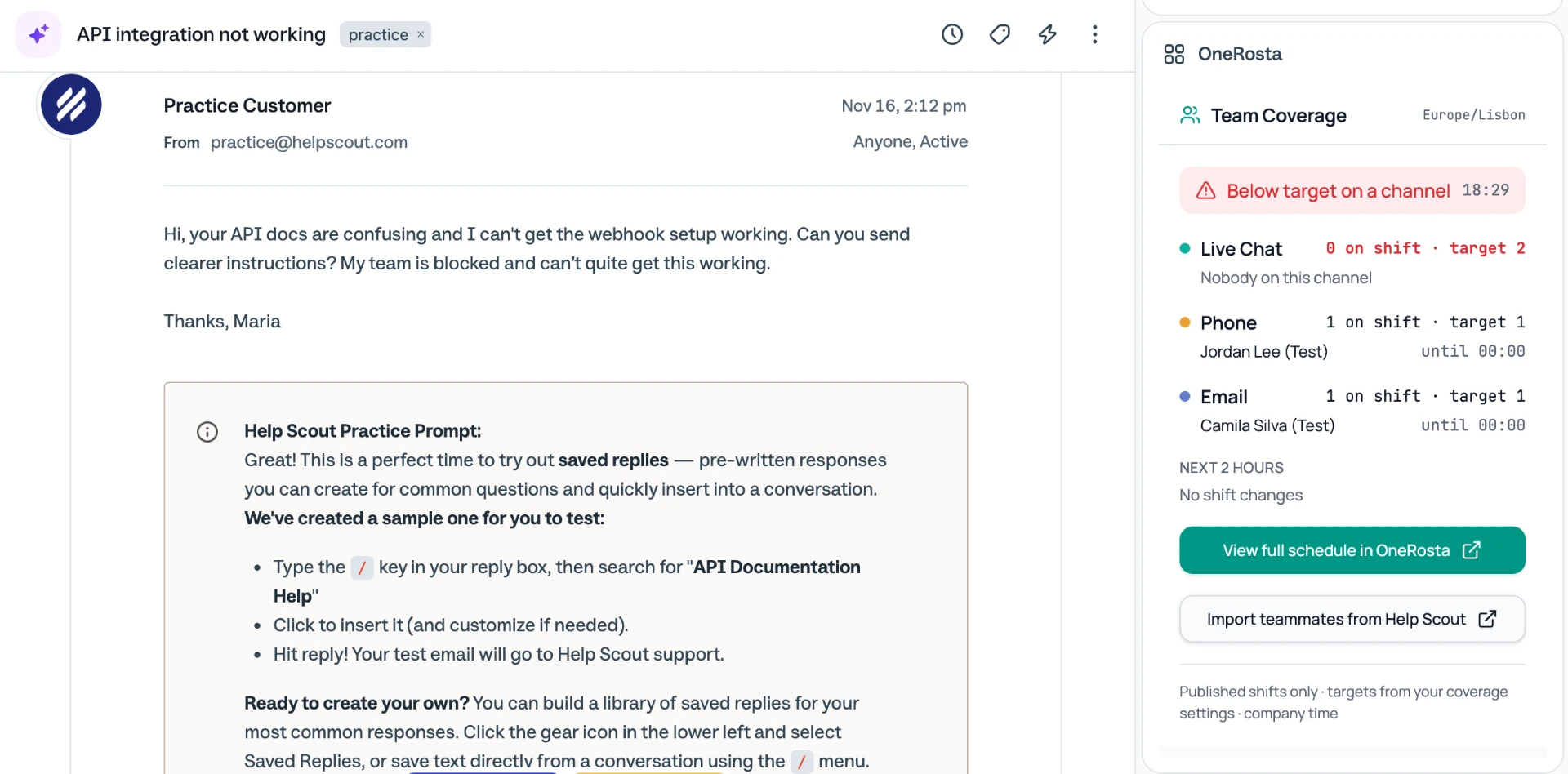
Open any conversation and expand the OneRosta panel. After signing in, owners and managers see Team Coverage in your company timezone.
Each channel shows who is on shift and how many people are scheduled against the target. A red banner appears when a channel is below target, so you can rearrange cover before the queue builds up.
What agents see
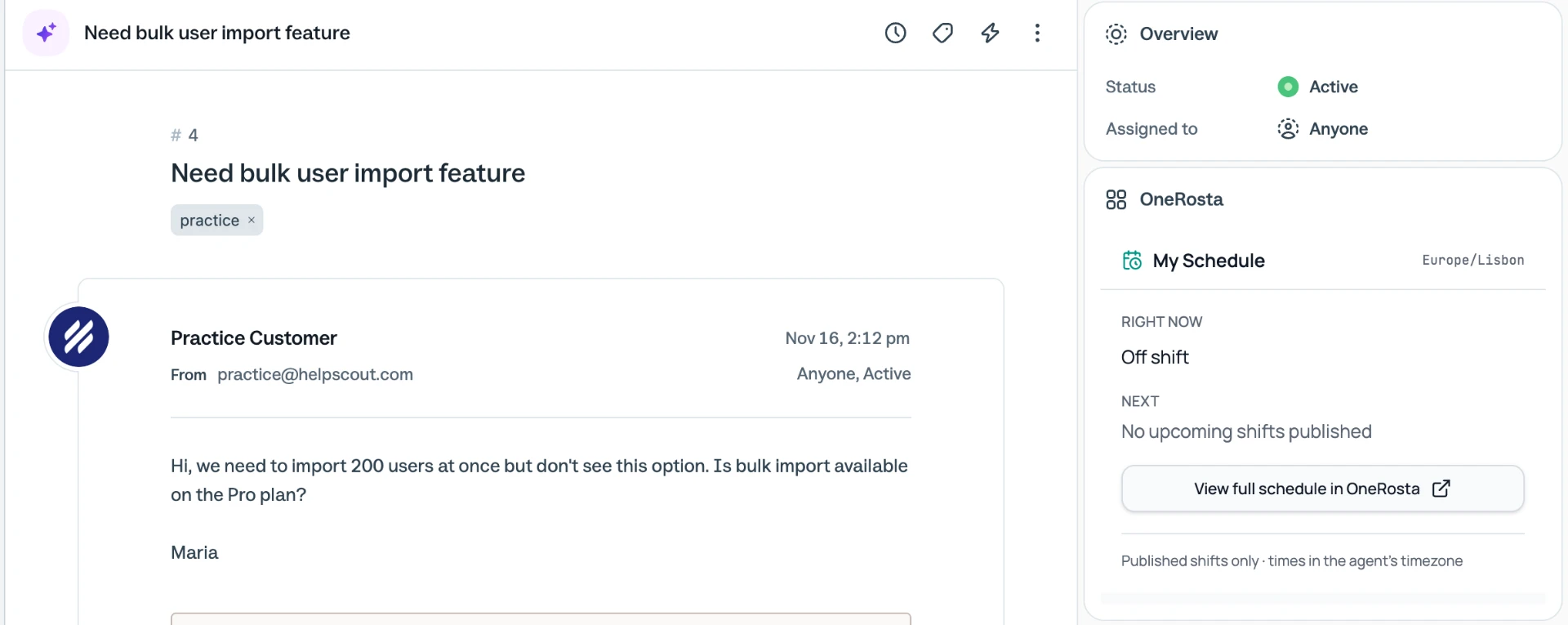
Agents see My Schedule: whether they’re on shift right now, which channel they’re on, and their next published shifts.
Times are shown in each agent’s own timezone from their Team profile, which helps distributed teams avoid handover mistakes.
Signing in and staying signed in
The first time someone opens the panel, they sign in with their OneRosta email and password. The sidebar stays signed in on that browser.
The sidebar adjusts its height to its content. It refreshes automatically and when you return to the tab, so changes you publish appear without reinstalling.
Importing teammates from Help Scout
OneRosta can also connect to Help Scout to import your users—names, emails and timezones only—so you can review them, choose channel skills and send invitations in one step.
Teammate import is coming soon. Until then, add teammates from Team with Add & invite; the sidebar works the same way.
Step by step
- 1
Step 1
Invite your team in OneRosta
Open Team, add each teammate with the right role and timezone, and select Add & invite.
Look forTeam - 2
Step 2
Publish a schedule
Build and publish at least the current week so the sidebar has shifts to show.
Look forPublish - 3
Step 3
Create the custom app in Help Scout
Manage → Apps → Build a Custom App → Dynamic Content. Name it OneRosta and set Content URL to https://onerosta.com/embed/helpscout-widget.
Look forHelp Scout - 4
Step 4
Choose mailboxes and save
Select the mailboxes where the panel should appear, then save the app.
- 5
Step 5
Sign in from a conversation
Open any conversation, expand OneRosta in the sidebar and sign in with your OneRosta email and password.
Look forSign in