How to Set Up a 24/7 Support Roster in Google Sheets (Free Template Included)
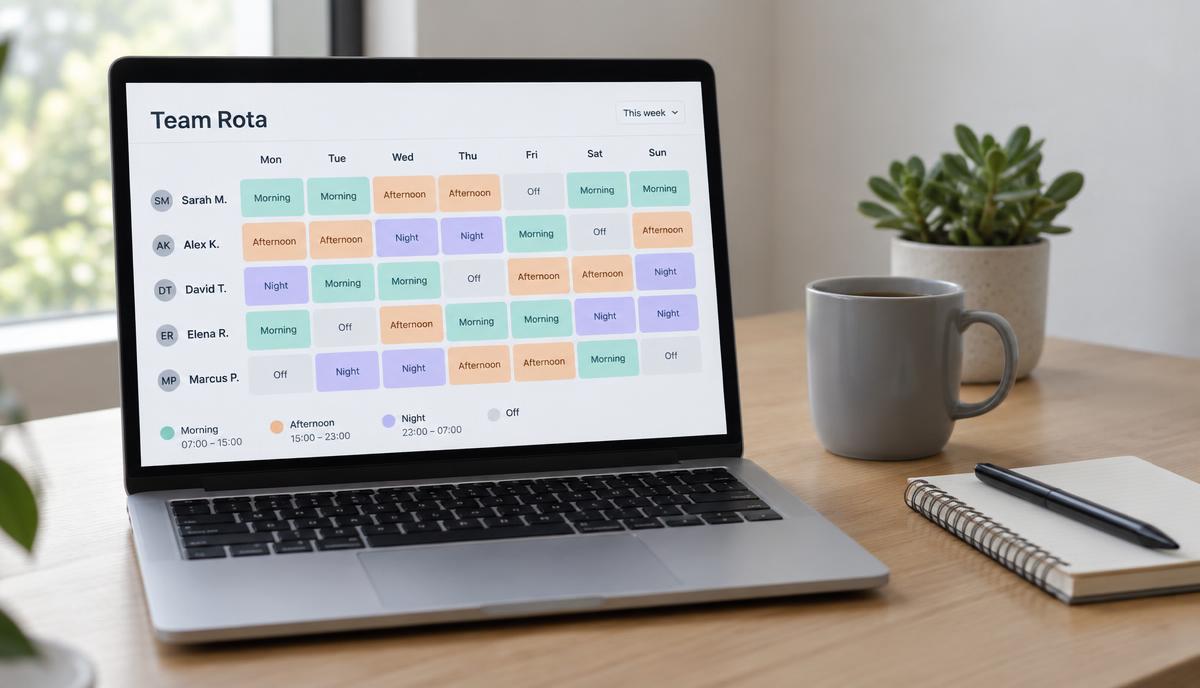
Almost every 24/7 customer support team on the planet starts their scheduling journey in Google Sheets.
It makes complete sense: spreadsheets are free, everyone already knows how to use them, and you can hack together a working shift grid in thirty minutes without going through company procurement or signing an enterprise software contract.
When you have four or five support reps handling a single email queue across two time zones, a simple sheet is often all you need.
The trouble begins when your coverage expands to true 24/7, you introduce real-time channels like live chat and phone calls with strict concurrent minimums, and your team stretches across Manila, London, and San Francisco. Suddenly, an innocent typo or an accidental drag-and-fill wipes out cell formulas, leaving you with surprise weekend gaps and exhausted agents.
To help support leads skip the painful trial-and-error phase, we built an operator-tested Free 24/7 Support Team Roster Template in Google Sheets.
Here is how the template is structured, how to set it up for your team, and how to identify when your rota has outgrown spreadsheet limits.
1. The Anatomy of an Operator-Grade Support Roster
Most generic employee scheduling templates fail for customer support because they treat shifts like static retail blocks (e.g., "John: 9 AM – 5 PM").
In customer support, what matters isn't just that John is working—it’s what channel John is staffing at 2:00 PM, and whether his shift overlaps with your peak live chat volume.
An effective 24/7 support rota requires three integrated components:
Tab 1: The Master Team Profile
Before building shift grids, centralize your team parameters in one master tab:
- Agent Name & Primary Timezone: (e.g., UTC-5 for New York, UTC+8 for Manila).
- Contracted Hours: Weekly target hours (e.g., 40h full-time or 20h part-time).
- Channel Certifications: Which agents are trained for phone calls vs. tier-2 technical email vs. live chat.
- Maximum Consecutive Shift Caps: Protecting against accidental 6-day stretches.
Linking your weekly schedules to a central profile tab ensures that when an agent updates their working hours or timezone, it updates workbook-wide without breaking historical weeks.
Tab 2: The 24-Hour Intraday Coverage Grid
Instead of vague "Morning / Afternoon / Night" rows, a support roster needs an hourly intraday grid running from 00:00 to 23:00 UTC.
Each cell represents an agent's assigned focus for that specific hour:
CHAT— Live chat queue (high concurrency, fast response)PHONE— Inbound voice line (zero concurrency, instant pickup)EMAIL— Asynchronous ticket triageEXTRA— QA reviews, team syncs, training, or documentation
Tab 3: Channel Minimums & Summary Math
At the bottom of each hour column, automated summary formulas sum up your active coverage:
Total Chat Staffed = COUNTIF(B4:B25, "CHAT")
Total Phone Staffed = COUNTIF(B4:B25, "PHONE")
Total Email Staffed = COUNTIF(B4:B25, "EMAIL")
Comparing these totals against your contracted channel minimums is what turns a dumb calendar into a dynamic operational schedule.
2. Building Automatic Deficit Alerts
The most common operational failure in spreadsheet rosters is the invisible coverage hole.
An ops lead looks at a filled sheet, sees twenty names with green shift blocks, and assumes the day is fully covered. But at 3:00 AM on Sunday, nobody is actually assigned to the live chat queue. Both agents on shift are assigned to email, and phone calls are routing to an unmonitored voicemail.
In our Free Support Roster Template, we built conditional formatting rules directly into the hourly calculation rows:
- Target Floor: You define the minimum agents required per channel per hour (e.g., Minimum Chat = 2, Minimum Phone = 1).
- Deficit Delta: The sheet evaluates
=Staffed - Minimum. - Crimson Deficit Highlighting: If the delta drops below zero for any hour on any channel, the cell turns bright crimson with an alert flag.
This gives your team leads an immediate visual pass/fail check. If there is even one red cell on the sheet, the schedule cannot be published.
3. Timezone Management: The UTC Anchor Rule
If your team is split between North America, Europe, and Southeast Asia, never write shift hours in local time.
A shift written as "8:00 AM – 4:00 PM" is meaningless unless everyone shares the same clock. Worse, twice a year during Daylight Saving Time (DST), the US and Europe move their clocks while the Philippines, South Africa, and most of Latin America stay static. If your sheet isn't anchored to UTC, half your team will show up an hour early or late after the DST transition.
How to Anchor Shifts Safely:
- Master Grid in UTC: Run the master schedule columns from
00:00 UTCto23:00 UTC. - Local Offset Columns: Next to each agent's name, display their local offset (
UTC + 8,UTC - 5). - Agent Local View Tab: Use formula lookups (
=FILTERor=INDEX/MATCH) to project the UTC master grid into an individualized local-time sheet for each agent.
4. How to Use the Free Google Sheets Template
You don't have to build these formulas and conditional formatting rules from scratch. You can make an instant copy of our pre-built workbook:
📋 Get the Free 24/7 Support Roster Template
Grab our free, operator-built Google Sheet template featuring:
- Pre-configured 24/7 hourly coverage matrix
- Automatic deficit alerts for Chat, Phone, and Email
- Master profile tab syncing headcounts and contracted hours
- Clean dark-slate design optimized for remote team handovers
Quick Setup in 3 Steps:
- Set your channel minimums: On the Coverage Targets row, input how many agents you need per hour on Chat, Phone, and Email.
- Add your team roster: Input your agents' names, timezones, and weekly target hours in the Team Profile tab.
- Assign channel blocks: Fill in shifts using the standard color-coded tags (
CHAT,PHONE,EMAIL). Watch the deficit rows at the bottom turn from green to red if a gap occurs.
5. The Ceiling: When Spreadsheets Hit Their Limit
Spreadsheets are brilliant for getting started. But as your team scales, you will inevitably hit the four structural ceilings of Google Sheets:
1. The "Two-Calendar Lie" (Leave Disconnects)
When an agent books PTO or reports sick, they do it in an HR tool (like BambooHR, Deel, or Gusto). Your shift rota lives in Google Sheets. Because these two systems never speak to each other, approved time-off rarely makes it onto the sheet in time. You end up with "ghost coverage"—an agent who is officially on vacation but still assigned to live chat on the rota.
2. Accidental Formula Corruption
Google Sheets permissions are blunt. If you give team leads or shift supervisors edit access so they can swap shifts, someone will inevitably copy-paste a block of cells, overwriting conditional formatting rules and nested COUNTIF formulas. By week three, your deficit calculations are quietly broken.
3. Mobile Usability & Shift Swaps
When an agent wakes up sick at 5:00 AM and needs to find coverage, navigating a 40-column spreadsheet on a smartphone is nearly impossible. Pinching, zooming, and editing cells on mobile leads to accidental data overwrites and delayed handovers.
4. Zero Audit Trails
When a client asks during a Monthly Business Review why response times spiked on a specific Saturday evening, spreadsheets provide no clean version history. Who changed the schedule? When was the swap approved? Who was originally supposed to be on queue?
The Next Step: Dedicated Scheduling Built for 24/7 Teams
If you have under 10 agents and minimal shift swapping, our Free Roster Template will serve you well.
When you grow past 10–15 agents, you shouldn't have to spend your Sunday evenings fixing broken Excel formulas or worrying about timezone math. Nor should you have to pay enterprise WFM software vendors $30 to $50 per seat every month just to build a fair schedule.
That is why we built OneRosta:
- Live Deficit Detection: Automatic gap alerts across every channel and timezone.
- Auto-Balancing Schedule Generator: Create fair 24/7 shift rotations in one click with burnout protection built in.
- No Per-Seat Software Tax: One flat workspace price of $39/month for your entire team.
Start with the free Google Sheet template, and whenever your team outgrows spreadsheet maintenance, try the interactive OneRosta demo to see how simple 24/7 scheduling can be.
See it on a real rota
Try the interactive sandbox — no account or sign-up needed.