Help Scout Shift Scheduling: How to Manage 24/7 Coverage (Without Spreadsheet Chaos)

Help Scout is widely loved by customer support teams for good reason: it gets out of the way, keeps customer conversations human, and avoids the bloated complexity of legacy helpdesks.
But as soon as a remote support team grows beyond five or six people and commits to 24/7 coverage, an operational headache emerges: who is actually on shift right now, what channels are they staffing, and what happens when someone calls in sick?
Help Scout manages tickets and conversations with elegance. However, like most helpdesks, it does not include a native shift scheduling engine, channel minimum tracker, or timezone-aware rota.
To bridge the gap, support leads almost always patch together a Google Sheet alongside Help Scout. Soon, agents are juggling multiple browser tabs, team leads are manually checking whether anyone is monitoring live chat at 3:00 AM, and approved PTO never seems to reach the operational roster.
Here is an operator’s guide to structuring 24/7 coverage for Help Scout teams, how to embed live shift visibility directly into your agents' sidebar, and how to eliminate spreadsheet chaos for good.
1. Why 24/7 Help Scout Teams Outgrow Spreadsheets
When your team is small and working in the same geographic region, managing coverage is simple. You check the Help Scout dashboard, see active teammates, and divide up the queue.
Coverage starts breaking when your team transitions to true 24/7 operations across multiple timezones (such as Manila, Lisbon, and San Francisco). Three specific friction points consistently arise:
The "Two-Calendar Lie"
Your HR or PTO tool (Gusto, BambooHR, Deel) approves an agent’s vacation time. But because that tool doesn't talk to your daily operations sheet, the shift remains scheduled. At 2:00 AM UTC on Saturday, the queue suddenly backs up because your primary chat agent is on approved annual leave—and nobody arranged a backfill.
Channel-Blind Scheduling
Knowing that four agents are working between 14:00 and 22:00 UTC isn't enough. You need to know which channel each agent is staffing. If all four agents focus on answering asynchronous emails while the Help Scout Beacon live chat goes unanswered, your median first response time spikes and customers wait in queue.
The Separate-Tab Disconnect
When shift schedules live in an external Google Sheet or calendar, agents rarely look at them mid-shift. They don't know who is coming on shift next to take over long-running customer threads, leading to messy, uncoordinated handovers.
2. Embedded Schedule Visibility: Putting Shifts Inside Help Scout
The most effective way to eliminate handover confusion is to put the schedule right where support agents spend 90% of their workday: inside the Help Scout conversation sidebar.
By connecting OneRosta's Help Scout Integration, both agents and managers get real-time schedule awareness without ever switching browser tabs.
For Agents: "My Next Shift" Beside Every Ticket
Support agents shouldn't have to decipher an overwhelming 30-row spreadsheet just to check when their lunch break is or what time their Friday shift starts.
With the OneRosta sidebar widget embedded in Help Scout, teammates see their personalized schedule translated automatically into their local device timezone:
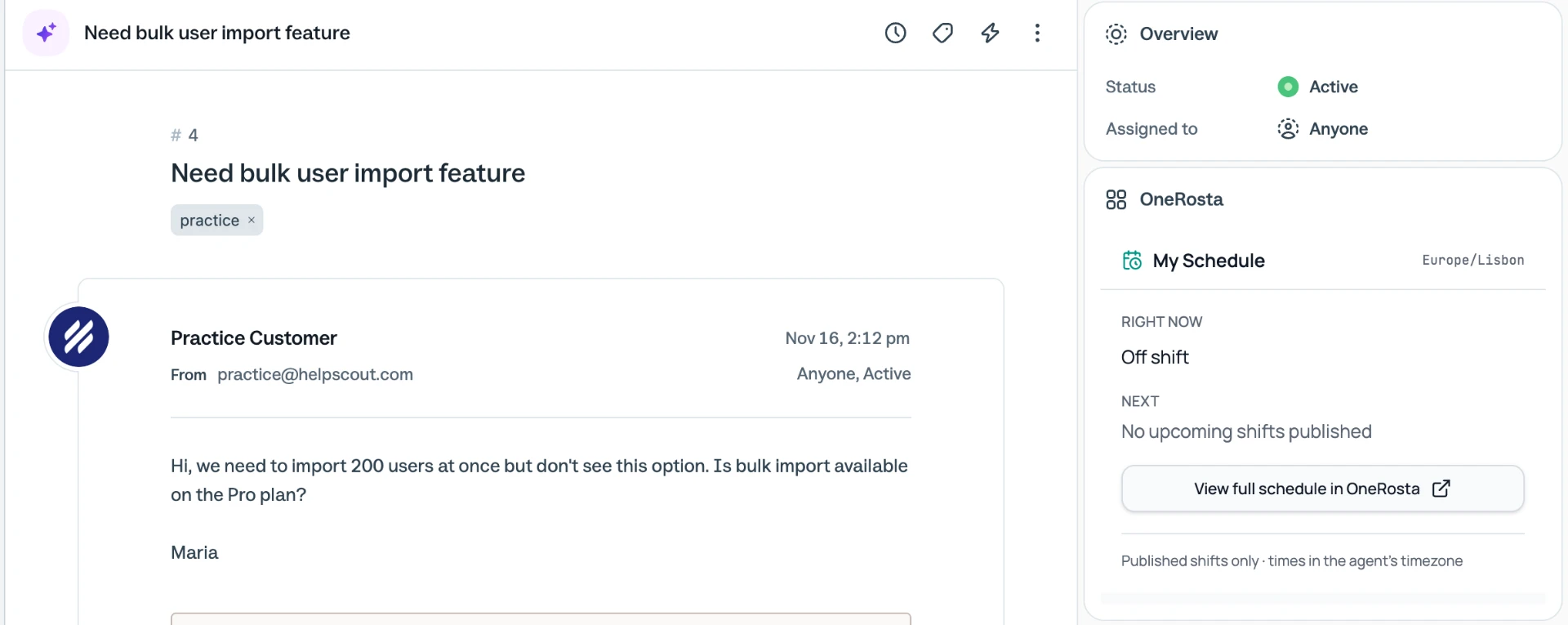 OneRosta Agent View in Help Scout Sidebar
- Current Active Task: Confirms whether the agent is currently assigned to Live Chat, Phone, Email, or Extra Tasks (like documentation or QA).
- Upcoming Shifts: Shows the exact start and end times for their next scheduled blocks.
- Local Timezone Conversion: Eliminates the mental math of converting company UTC rosters into local Manila, Dublin, or Denver hours.
For Team Leads: Real-Time Channel Coverage Against Targets
For support managers and shift supervisors, the Help Scout sidebar transforms into an intraday coverage monitor:
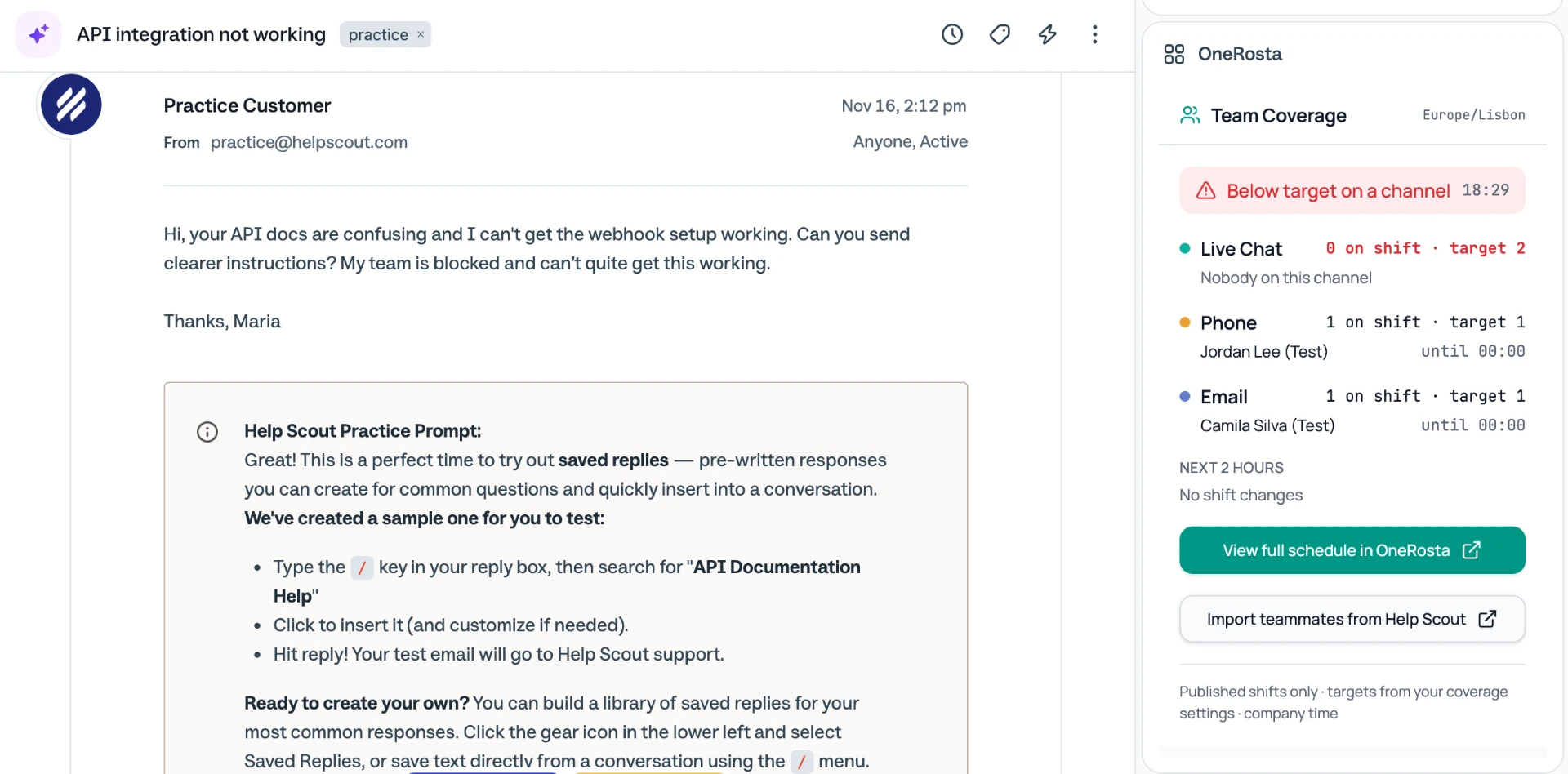 OneRosta Manager Coverage in Help Scout Sidebar
- Channel Staffing vs. Targets: Instantly see how many agents are currently staffed across Chat, Phone, and Email compared to your minimum service level requirements.
- Upcoming Shift Transitions: Displays who is rotating off and who is clocking in over the next 4 hours, allowing proactive handover management before queues spike.
- Privacy-Respecting Design: Coverage is drawn directly from your planned roster, not intrusive keystroke or webcam surveillance.
3. The 24/7 Support Roster: Connecting Daily Operations
When a manager needs to adjust shifts, approve a swap, or balance next week's schedule, a single click from the Help Scout sidebar opens the full OneRosta master schedule:
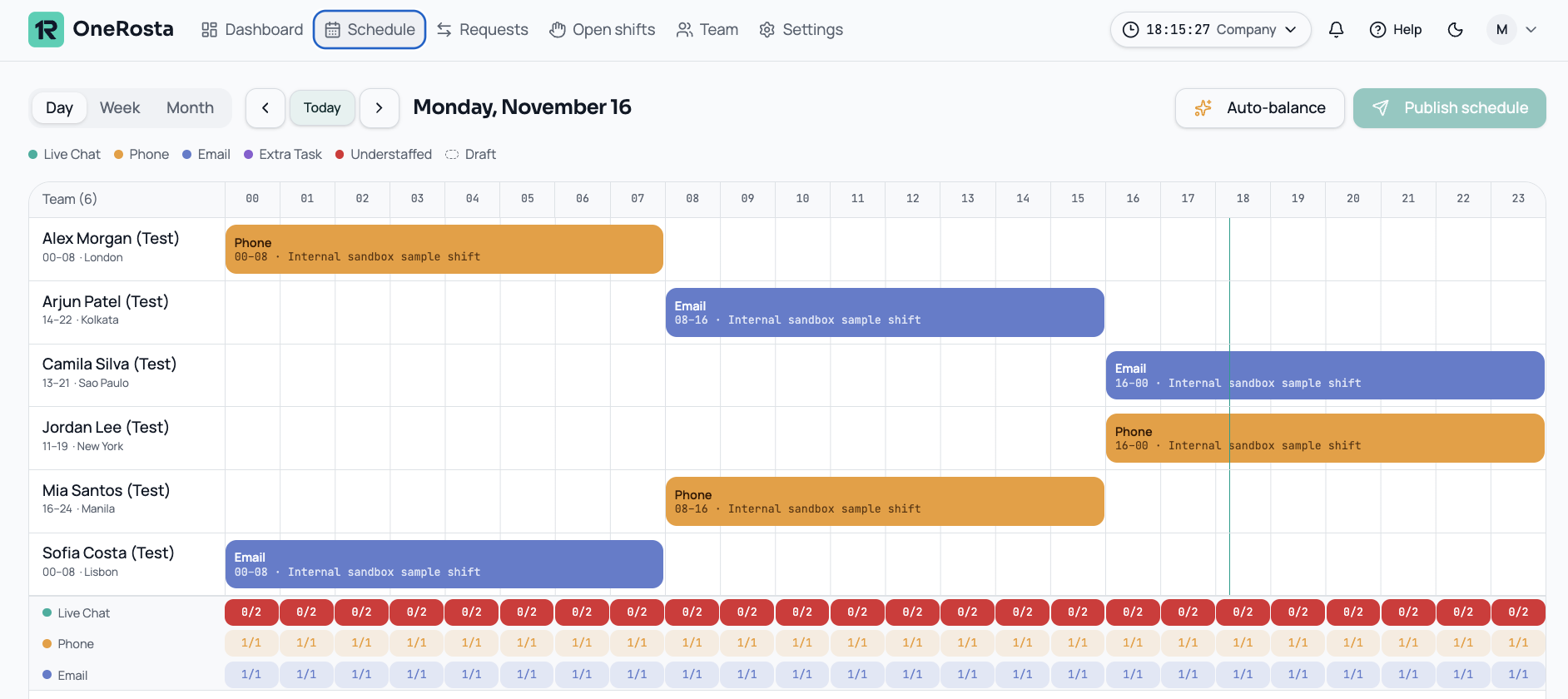 OneRosta Full 24/7 Day Schedule View
Unlike static retail scheduling tools or generic calendar grids, an operator-first support roster gives you:
- Intraday Channel Minimums: Set required staffing floors per channel (e.g., minimum 2 agents on Chat, 1 on Phone). If coverage drops below your target at any hour, the system triggers an immediate crimson deficit alert.
- Follow-the-Sun Rotations: Seamlessly hand off queues between APAC, EMEA, and Americas hubs with standardized shift handovers.
- Flat Team Pricing: Unlike legacy enterprise WFM tools that charge $30–$60 per agent every month, OneRosta provides flat workspace pricing at $39/month for up to 15 team members with zero per-seat fees.
4. How to Connect OneRosta to Help Scout in Under 3 Minutes
Setting up the integration requires zero developer assistance or complex API coding. Here is how simple it is:
Step 1: Add the Custom App in Help Scout
- In Help Scout, navigate to Manage → Apps → Create Custom App.
- Name the app
OneRosta Schedule. - Set the Content Type to
Dynamic URL. - Copy your unique OneRosta Content URL from OneRosta Settings → Integrations → Help Scout and paste it into the field.
- Select the Help Scout mailboxes where you want the schedule sidebar visible.
Step 2: Agent Sign-In
Teammates simply open any conversation in Help Scout. The OneRosta widget will appear in the right-hand sidebar. Agents sign in once using their OneRosta account credentials, and their personalized shift view loads instantly.
Step 3: Publish Your Shifts
Whenever you publish a new schedule or edit a shift in OneRosta, the changes reflect immediately inside Help Scout. No manual exports, no emailing PDFs, and no outdated shared calendar invites.
Summary Checklist for 24/7 Help Scout Coverage
| Problem | Old Spreadsheet Way | Integrated OneRosta + Help Scout |
|---|---|---|
| Schedule Location | Separate browser tab that agents forget to check | Embedded directly beside the Help Scout conversation |
| Channel Balance | Guessed by agents; frequent chat queue neglect | Real-time channel tracking (Chat, Phone, Email) |
| Timezone Confusion | Manual conversion errors between global hubs | Automatic local timezone translation |
| Shift Handovers | Blind transitions; dropped ticket contexts | Visibility into who is clocking in over the next 4 hours |
| Cost | "Free" sheets that consume 10 hours/week of manager time | Flat $39/mo flat workspace pricing with zero per-seat fees |
Ready to see how seamless 24/7 shift scheduling can be inside your helpdesk?
Explore the OneRosta Help Scout Integration, follow the step-by-step Setup Guide, or test a live working roster in our Free Interactive Demo with zero sign-up required.
See it on a real rota
Try the interactive sandbox — no account or sign-up needed.